User:Noggisoggi/beevo mobile: Difference between revisions
Jump to navigation
Jump to search
Noggisoggi (talk | contribs) mNo edit summary |
Noggisoggi (talk | contribs) Added images |
||
| Line 2: | Line 2: | ||
<hr> | <hr> | ||
This is based on the guide hosted on Angel Aura Amethyst's wiki; we thank them for their work: | This is based on the guide hosted on Angel Aura Amethyst's wiki; we thank them for their work: | ||
https://wiki.angelauramc.dev/wiki/going_further/CUSTOM-MC.html | https://wiki.angelauramc.dev/wiki/going_further/CUSTOM-MC.html<br> | ||
This section merely serves as a supplemnt to that guide, so please reference it when following this section. | This section merely serves as a supplemnt to that guide, so please reference it when following this section. | ||
<hr> | <hr> | ||
| Line 16: | Line 16: | ||
#* You will have a directory named "files" in {{button|☰}}; tap and hold it to rename (if you wish). | #* You will have a directory named "files" in {{button|☰}}; tap and hold it to rename (if you wish). | ||
# Go to that directory → <code>.minecraft</code> → <code>versions</code> → duplicate the <code>b1.7.3</code> folder and rename the copy to <code>betaevo</code> or similar, rename the files inside that directory in the same way, then move it to your <code>Download</code> folder. | # Go to that directory → <code>.minecraft</code> → <code>versions</code> → duplicate the <code>b1.7.3</code> folder and rename the copy to <code>betaevo</code> or similar, rename the files inside that directory in the same way, then move it to your <code>Download</code> folder. | ||
# Connect your Android device to your desktop/laptop computer and move <code>betaevo</code> to a working directory (the desktop, for example). | #* You may need to refresh the file manager (tap and hold, then swipe downwards) to update the file names. | ||
# Connect your Android device to your desktop/laptop computer and move <code>betaevo</code> to a working directory (the desktop, for example); from here, you'll need to use switch to your desktop/laptop computer. | |||
<gallery mode=nolines> | |||
File:BetaEvo-Mobile-1.png|Location of the create new profile button on Amethyst. | |||
File:BetaEvo-Mobile-2.png|Steps to add Amethyst's data folder to Material files and copy the b1.7.3 folder. | |||
</gallery> | |||
# [https://evolutions.retromc.org Download the BetaEvolutions client jar mod]. | # [https://evolutions.retromc.org Download the BetaEvolutions client jar mod]. | ||
# Edit the <code>betaevo.json</code>, and remove the part that has <code>"downloads:{"client"...}</code> ([https://user-images.githubusercontent.com/85581164/220926885-d25e911f-98c4-4989-af06-f1bd81acc7e2.jpg as seen in that guide]) | # Edit the <code>betaevo.json</code>, and remove the part that has <code>"downloads:{"client"...}</code> ([https://user-images.githubusercontent.com/85581164/220926885-d25e911f-98c4-4989-af06-f1bd81acc7e2.jpg as seen in that guide]) | ||
| Line 22: | Line 27: | ||
# Unpack the jar in that same folder, and unpack the BetaEvo client jar mod, then copy the contents of BetaEvo into that unpacked b1.7.3 folder, and overwrite. | # Unpack the jar in that same folder, and unpack the BetaEvo client jar mod, then copy the contents of BetaEvo into that unpacked b1.7.3 folder, and overwrite. | ||
# Delete <code>META-INF</code> in that folder. | # Delete <code>META-INF</code> in that folder. | ||
# Select all the files in that folder, and compress them as a zip. (With something like [https://www.7-zip.org/ 7-Zip]. | # Select all the files in that folder, and compress them as a zip. (With something like [https://www.7-zip.org/ 7-Zip]). | ||
# Move the <code>betaevo</code> back to your Android device, re-open Material Files, move that folder into the Amethyst folder <code>.minecraft</code> → <code>versions</code>. | # Move the <code>betaevo</code> back to your Android device, re-open Material Files, move that folder into the Amethyst folder <code>.minecraft</code> → <code>versions</code>. | ||
# Re-open Amethyst, edit your instance, change the version to <code>betaevo</code>, launch and pray it works. | # Re-open Amethyst, edit your instance, change the version to <code>betaevo</code>, launch and pray it works. | ||
If it doesn't, pester {{user|Noggisoggi}} in a [[Ticket system|ticket]]. | If it doesn't, pester {{user|Noggisoggi}} in a [[Ticket system|ticket]]. | ||
Latest revision as of 08:38, 14 August 2026
BetaEvolutions on Android-based devices. Under construction & slightly shabby. Slightly more friendly.
This is based on the guide hosted on Angel Aura Amethyst's wiki; we thank them for their work:
https://wiki.angelauramc.dev/wiki/going_further/CUSTOM-MC.html
This section merely serves as a supplemnt to that guide, so please reference it when following this section.
- If you haven't already, get Angel Aura Amethyst and log into your account.
- PojavLauncher and the like will still work for this guide.
- Due to the way that Android stores files for certain apps, you need to use alternative file managers for easier management.
- In place of MiXplorer, you can use Material Files; the latter will be used.
- For easier file management, it's recommended that you move the required files to your desktop/laptop computer.
- In Amethyst, create a new profile by opening the profile menu at the bottom of the screen, then selecting Create new profile → CREATE VANILLA PROFILE → Select
b1.7.3as the version, and save. - Launch the game once, and quit.
- Open Material Files, open the ☰ (hamburger menu) at the top left (or top-right in some locales) → + Add storage... → External storage, and inside of that file manager, re-select ☰ → Amethyst → USE THIS FOLDER and allow permission.
- You will have a directory named "files" in ☰; tap and hold it to rename (if you wish).
- Go to that directory →
.minecraft→versions→ duplicate theb1.7.3folder and rename the copy tobetaevoor similar, rename the files inside that directory in the same way, then move it to yourDownloadfolder.- You may need to refresh the file manager (tap and hold, then swipe downwards) to update the file names.
- Connect your Android device to your desktop/laptop computer and move
betaevoto a working directory (the desktop, for example); from here, you'll need to use switch to your desktop/laptop computer.
-
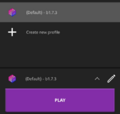 Location of the create new profile button on Amethyst.
 -
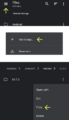 Steps to add Amethyst's data folder to Material files and copy the b1.7.3 folder.


- Download the BetaEvolutions client jar mod.
- Edit the
betaevo.json, and remove the part that has"downloads:{"client"...}(as seen in that guide) - Edit
"id": "b1.7.3"to"id": "betaevo", and save. - Unpack the jar in that same folder, and unpack the BetaEvo client jar mod, then copy the contents of BetaEvo into that unpacked b1.7.3 folder, and overwrite.
- Delete
META-INFin that folder. - Select all the files in that folder, and compress them as a zip. (With something like 7-Zip).
- Move the
betaevoback to your Android device, re-open Material Files, move that folder into the Amethyst folder.minecraft→versions. - Re-open Amethyst, edit your instance, change the version to
betaevo, launch and pray it works.

If it doesn't, pester
 Noggisoggi in a ticket.