Beta 1.7.3 installation guide: Difference between revisions
mNo edit summary |
Noggisoggi (talk | contribs) m (→MultiMC/PrismLauncher/Other forks plus BetaEvolutions: macOS 28 will no longer have Rosetta :( | From: https://en.wikipedia.org/wiki/Rosetta_(software)#Rosetta_2) |
||
| (18 intermediate revisions by 4 users not shown) | |||
| Line 1: | Line 1: | ||
[[Category:Guides]] | [[Category:Guides]] | ||
<div style="border: | <div style="border: solid #da373c; border-width: 0px 0px 0px 5px; background-color: #ffdddd; margin: 10px 0; padding: 10px; border-radius: 5px;"> | ||
<strong>Disclaimer:</strong> This guide assumes you already have bought a license for [https://www.minecraft.net/en-us/store/minecraft-java-bedrock-edition-pc ''Minecraft: Java Edition''] (Bedrock can't be used) to play. </div> | <span style="font-size: 1.2em">⚠️ <strong>Disclaimer:</strong></span> This guide assumes you already have bought a license for [https://www.minecraft.net/en-us/store/minecraft-java-bedrock-edition-pc ''Minecraft: Java Edition''] (Bedrock can't be used) to play. </div> | ||
__TOC__ | __TOC__ | ||
== JRE links == | |||
The [https://www.minecraft.net/en-us/download official launcher] comes with a JRE.<br> | |||
For other launchers (or if you want to use a different Java binary), you can use the OpenJDK builds from either of these vendors: | |||
* '''Azul Zulu''': [https://www.azul.com/downloads/?version=java-8-lts&os=macos&architecture=x86-64-bit&package=jre#zulu https://www.azul.com/downloads/?version=java-8-lts&package=jre#zulu] | |||
* '''Adoptium Eclipse Temurin''': [https://adoptium.net/temurin/releases/?version=8 https://adoptium.net/temurin/releases/?version=8] | |||
== Official launcher == | == Official launcher == | ||
You might have [https://www.minecraft.net/en-us/download this launcher] (and a '''premium account''') installed in most cases.<br /> | You might have [https://www.minecraft.net/en-us/download this launcher] (and a '''premium account''') installed in most cases.<br /> | ||
By default, it doesn't show old versions of the game before Release 1.0, and must be enabled in the settings.<br /> | By default, it doesn't show old versions of the game before Release 1.0, and must be enabled in the settings.<br /> | ||
{{User|Garsooon}} has a video guide: https://youtube.com/watch?v=JcBf-yk4TwY | {{User|Garsooon}} has a video guide: <youtube>https://youtube.com/watch?v=JcBf-yk4TwY</youtube> | ||
# Select the {{button|Settings}} tab, found in the bottom left corner. | # Select the {{button|Settings}} tab, found in the bottom left corner. | ||
# In the Enable {{button|Show Historical versions of Minecraft:Java Edition in the Launcher}} under ''Minecraft: Java Edition Settings'' in the {{button|General}} tab. | # In the Enable {{button|Show Historical versions of Minecraft: Java Edition in the Launcher}} under ''Minecraft: Java Edition Settings'' in the {{button|General}} tab. | ||
# Go back to the {{button|Minecraft: Java Edition}} tab on the sidebar, open the {{button|Installations}} tab and then select {{button|New Installation}}. | # Go back to the {{button|Minecraft: Java Edition}} tab on the sidebar, open the {{button|Installations}} tab and then select {{button|New Installation}}. | ||
# Enter the desired name of the install, and then select <code>old_beta 1.7.3</code> in the version dropdown menu, then select {{button|Create}}. | # Enter the desired name of the install, and then select <code>old_beta 1.7.3</code> in the version dropdown menu, then select {{button|Create}}. | ||
| Line 16: | Line 21: | ||
* '''PrismLauncher''': https://prismlauncher.org | * '''PrismLauncher''': https://prismlauncher.org | ||
[[BetaEvolutions]] can be used with these launchers.<br /> | [[BetaEvolutions]] can be used with these launchers.<br /> | ||
{{user| | You can deviate at some parts of this guide if you want to use a different fix, or anything else.<br /> | ||
{{user|lnphi}} has a video for installing this mod (v1 is used because this video was made before v2 was released): | |||
<div style="border: | <youtube>https://www.youtube.com/watch?v=939CdzZ_5Us</youtube> | ||
<strong> | <div style="border: solid #da373c; border-width: 0px 0px 0px 5px; background-color: #ffdddd; margin: 10px 0; padding: 10px; border-radius: 5px;"> | ||
<span style="font-size: 1.2em">⚠️ <strong>Warnings:</strong></span> | |||
* Due to BetaEvolutions editing a lot of stuff, it is highly recommended that you ''do not use other mods'' whilst using it.<br /> | * Due to BetaEvolutions editing a lot of stuff, it is highly recommended that you ''do not use other mods'' whilst using it.<br /> | ||
** (Language file edits, terrain edits and so on, are compatible, so long as BetaEvo doesn't conflict with it.) | ** (Language file edits, terrain edits and so on, are compatible, so long as BetaEvo doesn't conflict with it.) | ||
* Make a ticket on [https:// | * [[Ticket system|Make a ticket]] on the [[Discord server]] if you're encountering issues. | ||
* | <hr> | ||
< | The following issues and their solutions are specific to Apple Silicon Macintoshes running macOS: (If these do not apply to you, collapse these sections.) | ||
<div class="toccolours mw-collapsible" style=" border: solid #767676; border-width: 0px 0px 0px 5px; background-color: #e5e5e5; margin: 10px 0; padding: 10px; border-radius: 5px;"> | |||
File:BetaEvolutions-Guide-M1-2.png|The aformentioned bug | <div style="font-weight:bold;line-height:1.6;">Game doesn't boot due to Discord RPC errors</div> | ||
</ | <div class="mw-collapsible-content"> | ||
[[File:BetaEvolutions-Guide-M1-1.png|thumb|right|The Discord RPC error.]] | |||
The Discord Rich Presence library used by BetaEvolutions currently doesn't have an arm64 version, and an x86-64 version of Java has to be used. | |||
Keep these in mind: | |||
* Some basic computing knowledge, such as extracting files, moving, copying, etc. are <b>mandatory</b>. | |||
* This fix relies on the [https://en.wikipedia.org/wiki/Rosetta_(software)#Rosetta_2 Rosetta 2] translation layer, and hence, this fix will '''not''' work on macOS 28 and later. | |||
* {{User|Noggisoggi}} made a video tutorial for this, with the Azul Zulu OpenJDK build: | |||
<youtube>https://www.youtube.com/watch?v=VASwPzvSYcY</youtube> | |||
<hr> | |||
# Get an x86-64 build of the JRE for macOS | |||
#* You can use the OpenJDK builds from either of these vendors: | |||
#* '''Azul Zulu''': [https://www.azul.com/downloads/?version=java-8-lts&os=macos&architecture=x86-64-bit&package=jre#zulu https://www.azul.com/downloads/?version=java-8-lts&os=macos&architecture=x86-64-bit&package=jre#zulu] & download the zip/tar archive. | |||
#** There's no option to install this system-wide. | |||
#* '''Adoptium Eclipse Temurin''': [https://adoptium.net/temurin/releases/?version=8 https://adoptium.net/temurin/releases/?version=8] | |||
#** Select <code>macOS</code> for the ''Operating System'' | |||
#** <code>x64</code> for ''Architecture'', and | |||
#** <code>JRE</code> for ''Package Type''. | |||
#* If you want to install it system-wide, download the <code>.pkg</code> file. | |||
#* If you want a portable install, download the <code>.tar.gz</code> file. | |||
# '''This step will vary depending on what variant you downloaded''': | |||
#* Open your downloads folder and: | |||
#** Extract the <code>.tar.gz</code>/<code>.zip</code> archive if you downloaded it. | |||
#** Install the x86-64 JRE from the <code>.pkg</code> file. | |||
# Open your launcher; PrismLauncher or MultiMC in this case. | |||
#* '''Only for portable Java installs; skip to step 4 if you're using a system-wide install''': | |||
#** Select your instance of Beta 1.7.3, select {{Button|Instance Folder}} or similar. | |||
#** Your b1.7.3 instance folder should open. | |||
#*** If not: open the Finder, select {{Button|View}} on the menu bar, then select: {{Button|Go to Folder...}} & input one of these paths depending on your launcher: | |||
#**** '''PrismLauncher''': <code>~/Library/Application Support/PrismLauncher/instances</code> | |||
#**** '''MultiMC''': <code>/Applications/MultiMC.app/Data/instances</code> | |||
#***** You need to open the context menu (<code>[Right Click]</code>, <code>[Ctrl]</code>+<code>[Left Click]</code>) on <code>MultiMC.app</code> & select {{Button|Show Contents}}. | |||
#*** Press <code>[Return]</code> or <code>[Enter]</code> & go to your b1.7.3 instance. | |||
#** Copy that JRE you extracted directly into the instance folder. | |||
# In MultiMC/PrismLauncher, select your b1.7.3 once more & select {{Button|Edit Instance}} | |||
#* Select: {{Button|Settings}} -> {{Button|Java installation}} -> Enable (tick) {{Button|Java installation}} | |||
#** '''System-wide installs''': | |||
#*** Select {{Button|Auto-detect}} & select the one with: | |||
#**** ''Version'': <code>1.8.0_372</code> | |||
#**** ''Architecture'': <code>x86_64</code> | |||
#**** ''Path'': <code>/Library/Java/JavaVirtualMachines/temurin-8.jre/Contents/Home/bin/java</code> | |||
#*** If the auto-detect method doesn't work for some reason, you can use the aforementioned path as the Java path. | |||
#** '''Portable installs''': | |||
#*** '''Method 1''': | |||
#**** Select {{Button|Browse}}. | |||
#**** A file picker should pop-up; head to <code>instances</code> -> your b1.7.3 instance -> the JRE you extracted -> <code>bin/java</code>. | |||
#** '''Method 2''': | |||
#*** Open your instance folder | |||
#*** Head to <code>instances</code> -> your b1.7.3 instance -> the JRE you extracted -> <code>Contents/Home/bin/java</code>. | |||
#*** Select the <code>java</code> binary. | |||
#**** Press <code>Command</code>+<code>Option</code>+<code>C</code> '''or''' open the context menu, hold <code>Option</code> & select {{Button|Copy path}}. | |||
#*** Go back to the instance editor, select the entire Java binary path & replace it with what you have copied. | |||
You can now launch the game. | |||
</div></div> | |||
<div class="toccolours mw-collapsible" style=" border: solid #767676; border-width: 0px 0px 0px 5px; background-color: #e5e5e5; margin: 10px 0; padding: 10px; border-radius: 5px;"> | |||
<div style="font-weight:bold;line-height:1.6;">Broken color channels (red is blue, blue is red)</div> | |||
<div class="mw-collapsible-content"> | |||
[[File:BetaEvolutions-Guide-M1-2.png|thumb|right|The aformentioned bug.]] | |||
Use ''either'' (but not both) of these 2 solutions: | |||
* Use LegacyFix: [https://github.com/betacraftuk/legacyfix/blob/develop/docs/Prism%20Launcher.md PrismLauncher], [https://github.com/betacraftuk/legacyfix/blob/develop/docs/MultiMC.md MultiMC]. | |||
* Use Dereku's M1Fix here: https://www.mediafire.com/file/k3pextx6zfdx0vg/M1Fix.zip/file | |||
*** '''On MultiMC/PrismLauncher/forks''': Edit your b1.7.3 instance -> {{button|Version}} -> {{button|Add to minecraft.jar}} -> Select <code>M1Fix.zip</code> -> Launch the game. | |||
*** <div width=100% style="font-size: 15px;font-weight: bold;">Don't focus on the blank window, it'll make your game unresponsive.</div> Just minimize it. | |||
</div></div> | |||
</div> | </div> | ||
<hr /> | <hr /> | ||
# Install either of the aforementioned launchers (MultiMC or [https://prismlauncher.org PrismLauncher] or what have you). | # Install either of the aforementioned launchers ([https://multimc.org MultiMC] or [https://prismlauncher.org PrismLauncher] or what have you). | ||
# | # Download BetaEvolutions from https://evolutions.retromc.org by reading and agreeing to the brief terms and conditions, and then downloading either the stable (recommended) or unstable JAR. | ||
# Launch MultiMC (or fork), set up your account by clicking on the account selector in the top right corner, select {{button|Manage Accounts...}}, and then select {{button|Add Microsoft}}. | # Launch MultiMC (or fork), set up your account by clicking on the account selector in the top right corner, select {{button|Manage Accounts...}}, and then select {{button|Add Microsoft}}. | ||
# Select {{button|Add Instance}}, and select <code>b1.7.3</code> as the version by enabling {{button|Betas}} and scroll through the list until you see it. Change the details to your liking and select {{button|OK}}. | # Select {{button|Add Instance}}, and select <code>b1.7.3</code> as the version by enabling {{button|Betas}} and scroll through the list until you see it. Change the details to your liking and select {{button|OK}}. | ||
| Line 56: | Line 120: | ||
File:BetaEvolutions-Guide-9.png | File:BetaEvolutions-Guide-9.png | ||
</gallery> | </gallery> | ||
== BetaCraft launcher == | == BetaCraft launcher == | ||
https://betacraft.uk/downloads<br> | |||
On that page, scroll down and you'll see 2 options: | |||
* v1, which is made in Java and is generally more stable. | |||
* v2 (alpha), which includes easy mod support, but is generally a bit unstable. | |||
Assuming you have either one (or both) of them installed: | |||
=== 2.x === | |||
{{notice|As 2.x is in alpha, the launcher can sometimes crash. ''Pray that it doesn't crash.''}} | |||
# Select {{button|Accounts}}, then {{button|Add account}} and login with your Microsoft account. | |||
# Select {{button|Settings}}, then the {{button|Java Installations}} tab in the left hand column. | |||
#* You should see your Java installations here, but there is a menu/button to download and install a Java distribution. | |||
#* Select the one prefixed with "<code>1.8.0</code>", and in the list's lower left, select {{button|Set as default}}. | |||
#* '''Apple Silicon Mac (and non-x86-64 computer/unsupported OS) users only:''' {{button|Settings}} -> {{Button|General}} -> Disable {{button|Discord Rich presence}}<br>(Because the RPC doesn't have a version for the aforementioned platform(s).) | |||
# Select {{button|Instances}}, then {{button|Add instance}}, then scroll down the list, and select <code>b1.7.3</code>.<br>(Attempting to select the other tabs/searching and then selecting will crash the program.)<br>And also: name your instance. | |||
<hr> | |||
Now you can select the instance and hit {{button|Play}}, but for those that want to install BetaEvolutions: | |||
# Download BetaEvolutions from https://evolutions.retromc.org by reading and agreeing to the brief terms and conditions, and then downloading either the stable (recommended) or unstable JAR. | |||
#* Rename that file to have <code>.zip</code> at the end if the mod file picker doesn't allow you to select it. | |||
# Head to the {{button|Instances}} tab, right-click (or left-click if you configured it that way) your b1.7.3 instance, {{button|Edit}} -> {{Button|Mods}} -> {{button|Add to minecraft.jar}} -> select the <code>BetaEvolutionsFull-1.5.0.zip</code> (or jar) file.<br>And select {{button|Save}}. | |||
<gallery> | |||
File:BetaCraft-V2-launcher-1.png|Accounts tab with {{User|Noggisoggi}}. | |||
File:BetaCraft-V2-launcher-2.png|Java installations list. | |||
File:BetaCraft-V2-launcher-3.png|Instance creation. | |||
File:BetaCraft-V2-launcher-4.png|Mod installation. | |||
</gallery> | |||
<hr> | |||
And now you can launch the game (hopefully without crashing). | |||
=== 1.x === | |||
# If for some reason your version is not set to <code>b1.7.3</code>, hit {{button|Select version}} -> <code>b1.7.3</code>. | # If for some reason your version is not set to <code>b1.7.3</code>, hit {{button|Select version}} -> <code>b1.7.3</code>. | ||
# Select {{button|Login}}, and follow the instructions given. | # Select {{button|Login}}, and follow the instructions given. | ||
Latest revision as of 00:30, 19 April 2026
JRE links
The official launcher comes with a JRE.
For other launchers (or if you want to use a different Java binary), you can use the OpenJDK builds from either of these vendors:
- Azul Zulu: https://www.azul.com/downloads/?version=java-8-lts&package=jre#zulu
- Adoptium Eclipse Temurin: https://adoptium.net/temurin/releases/?version=8
Official launcher
You might have this launcher (and a premium account) installed in most cases.
By default, it doesn't show old versions of the game before Release 1.0, and must be enabled in the settings.
 Garsooon has a video guide:
- Select the Settings tab, found in the bottom left corner.
- In the Enable Show Historical versions of Minecraft: Java Edition in the Launcher under Minecraft: Java Edition Settings in the General tab.
- Go back to the Minecraft: Java Edition tab on the sidebar, open the Installations tab and then select New Installation.
- Enter the desired name of the install, and then select
old_beta 1.7.3in the version dropdown menu, then select Create. - Click on the Minecraft: Java Edition tab on the sidebar again and select the installation you just made from the drop down menu and press Play.
MultiMC/PrismLauncher/Other forks plus BetaEvolutions
- MultiMC: https://multimc.org
- PrismLauncher: https://prismlauncher.org
BetaEvolutions can be used with these launchers.
You can deviate at some parts of this guide if you want to use a different fix, or anything else.
 lnphi has a video for installing this mod (v1 is used because this video was made before v2 was released):
⚠️ Warnings:
- Due to BetaEvolutions editing a lot of stuff, it is highly recommended that you do not use other mods whilst using it.
- (Language file edits, terrain edits and so on, are compatible, so long as BetaEvo doesn't conflict with it.)
- Make a ticket on the Discord server if you're encountering issues.
The following issues and their solutions are specific to Apple Silicon Macintoshes running macOS: (If these do not apply to you, collapse these sections.)

The Discord Rich Presence library used by BetaEvolutions currently doesn't have an arm64 version, and an x86-64 version of Java has to be used. Keep these in mind:
- Some basic computing knowledge, such as extracting files, moving, copying, etc. are mandatory.
- This fix relies on the Rosetta 2 translation layer, and hence, this fix will not work on macOS 28 and later.
 Noggisoggi made a video tutorial for this, with the Azul Zulu OpenJDK build:
- Get an x86-64 build of the JRE for macOS
- You can use the OpenJDK builds from either of these vendors:
- Azul Zulu: https://www.azul.com/downloads/?version=java-8-lts&os=macos&architecture=x86-64-bit&package=jre#zulu & download the zip/tar archive.
- There's no option to install this system-wide.
- Adoptium Eclipse Temurin: https://adoptium.net/temurin/releases/?version=8
- Select
macOSfor the Operating System x64for Architecture, andJREfor Package Type.
- Select
- If you want to install it system-wide, download the
.pkgfile. - If you want a portable install, download the
.tar.gzfile.
- This step will vary depending on what variant you downloaded:
- Open your downloads folder and:
- Extract the
.tar.gz/.ziparchive if you downloaded it. - Install the x86-64 JRE from the
.pkgfile.
- Extract the
- Open your downloads folder and:
- Open your launcher; PrismLauncher or MultiMC in this case.
- Only for portable Java installs; skip to step 4 if you're using a system-wide install:
- Select your instance of Beta 1.7.3, select Instance Folder or similar.
- Your b1.7.3 instance folder should open.
- If not: open the Finder, select View on the menu bar, then select: Go to Folder... & input one of these paths depending on your launcher:
- PrismLauncher:
~/Library/Application Support/PrismLauncher/instances - MultiMC:
/Applications/MultiMC.app/Data/instances- You need to open the context menu (
[Right Click],[Ctrl]+[Left Click]) onMultiMC.app& select Show Contents.
- You need to open the context menu (
- PrismLauncher:
- Press
[Return]or[Enter]& go to your b1.7.3 instance.
- If not: open the Finder, select View on the menu bar, then select: Go to Folder... & input one of these paths depending on your launcher:
- Copy that JRE you extracted directly into the instance folder.
- Only for portable Java installs; skip to step 4 if you're using a system-wide install:
- In MultiMC/PrismLauncher, select your b1.7.3 once more & select Edit Instance
- Select: Settings -> Java installation -> Enable (tick) Java installation
- System-wide installs:
- Select Auto-detect & select the one with:
- Version:
1.8.0_372 - Architecture:
x86_64 - Path:
/Library/Java/JavaVirtualMachines/temurin-8.jre/Contents/Home/bin/java
- Version:
- If the auto-detect method doesn't work for some reason, you can use the aforementioned path as the Java path.
- Select Auto-detect & select the one with:
- Portable installs:
- Method 1:
- Select Browse.
- A file picker should pop-up; head to
instances-> your b1.7.3 instance -> the JRE you extracted ->bin/java.
- Method 1:
- Method 2:
- Open your instance folder
- Head to
instances-> your b1.7.3 instance -> the JRE you extracted ->Contents/Home/bin/java. - Select the
javabinary.- Press
Command+Option+Cor open the context menu, holdOption& select Copy path.
- Press
- Go back to the instance editor, select the entire Java binary path & replace it with what you have copied.
- System-wide installs:
- Select: Settings -> Java installation -> Enable (tick) Java installation
You can now launch the game.

Use either (but not both) of these 2 solutions:
- Use LegacyFix: PrismLauncher, MultiMC.
- Use Dereku's M1Fix here: https://www.mediafire.com/file/k3pextx6zfdx0vg/M1Fix.zip/file
- On MultiMC/PrismLauncher/forks: Edit your b1.7.3 instance -> Version -> Add to minecraft.jar -> Select
M1Fix.zip-> Launch the game. - Don't focus on the blank window, it'll make your game unresponsive.Just minimize it.
- On MultiMC/PrismLauncher/forks: Edit your b1.7.3 instance -> Version -> Add to minecraft.jar -> Select
- Install either of the aforementioned launchers (MultiMC or PrismLauncher or what have you).
- Download BetaEvolutions from https://evolutions.retromc.org by reading and agreeing to the brief terms and conditions, and then downloading either the stable (recommended) or unstable JAR.
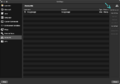
- Launch MultiMC (or fork), set up your account by clicking on the account selector in the top right corner, select Manage Accounts..., and then select Add Microsoft.
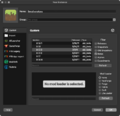
- Select Add Instance, and select
b1.7.3as the version by enabling Betas and scroll through the list until you see it. Change the details to your liking and select OK. - Right-click (or left-click; open context menu) the newly created instance, and select Edit, or select the same button on the sidebar after selecting the aforementioned instance.
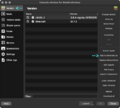
- Version -> Add to Minecraft.jar -> Add the BetaEvolutions jar mod you downloaded.
- Don't use the Mods tab for this! (Not unless a mod loader is used.)
- Go to: Settings -> Tick Java installation -> Auto-detect if you installed the JRE system wide.
- If you downloaded the zip/tar archive, you simply extract it, select Browse in the instance settings, navigate to the extracted JRE ->
bin/javaand select thatjavafile. - Under MS Windows, use
javaw.exeinstead.
- If you downloaded the zip/tar archive, you simply extract it, select Browse in the instance settings, navigate to the extracted JRE ->
- Launch the game via Launch and pray it works.
- Image guide
-
-

-
-
-

-
-
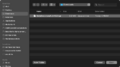
-
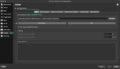
-
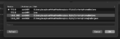


BetaCraft launcher
https://betacraft.uk/downloads
On that page, scroll down and you'll see 2 options:
- v1, which is made in Java and is generally more stable.
- v2 (alpha), which includes easy mod support, but is generally a bit unstable.
Assuming you have either one (or both) of them installed:
2.x
ℹ️ Notice: As 2.x is in alpha, the launcher can sometimes crash. Pray that it doesn't crash.
- Select Accounts, then Add account and login with your Microsoft account.
- Select Settings, then the Java Installations tab in the left hand column.
- You should see your Java installations here, but there is a menu/button to download and install a Java distribution.
- Select the one prefixed with "
1.8.0", and in the list's lower left, select Set as default. - Apple Silicon Mac (and non-x86-64 computer/unsupported OS) users only: Settings -> General -> Disable Discord Rich presence
(Because the RPC doesn't have a version for the aforementioned platform(s).)
- Select Instances, then Add instance, then scroll down the list, and select
b1.7.3.
(Attempting to select the other tabs/searching and then selecting will crash the program.)
And also: name your instance.
Now you can select the instance and hit Play, but for those that want to install BetaEvolutions:
- Download BetaEvolutions from https://evolutions.retromc.org by reading and agreeing to the brief terms and conditions, and then downloading either the stable (recommended) or unstable JAR.
- Rename that file to have
.zipat the end if the mod file picker doesn't allow you to select it.
- Rename that file to have
- Head to the Instances tab, right-click (or left-click if you configured it that way) your b1.7.3 instance, Edit -> Mods -> Add to minecraft.jar -> select the
BetaEvolutionsFull-1.5.0.zip(or jar) file.
And select Save.
-

Accounts tab with
Noggisoggi.
-

Java installations list.
-
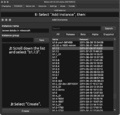
Instance creation.
-
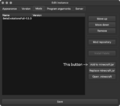
Mod installation.


And now you can launch the game (hopefully without crashing).
1.x
- If for some reason your version is not set to
b1.7.3, hit Select version ->b1.7.3. - Select Login, and follow the instructions given.
- Once you log in, you can then select Edit instance if you want to change some settings - namely, the Java binary used.
- Windows:
%programfiles%\<Java distributor name>\<Java 8 or something>\bin\javaw.exe - Arch Linux, via the
jre8-openjdkpackage:/usr/lib/jvm/java-8-openjdk/bin/java - macOS (if JRE is installed system-wide):
/Library/Java/JavaVirtualMachines/<name-of-distributor>-8.jre/Contents/Home/bin/java
- Windows:
- Select OK, and select Play.

